Which iOS is running on your iPhone? This is how you can find out in 30 seconds, know the complete process

Let us tell you that every new iOS update comes with new features, better security and bug fixes. Sometimes some apps do not work properly on older iOS versions or are not installed at all. In such a situation, if you know the iOS version of your phone, then you will be able to easily understand whether your device supports any app or feature or not.
Let us tell you that every new iOS update comes with new features, better security and bug fixes. Sometimes some apps do not work properly on older iOS versions or are not installed at all. In such a situation, if you know the iOS version of your phone, then you will be able to easily understand whether your device supports any app or feature or not.

Apart from this, if you are facing any technical problem with your iPhone and you are looking for results online or contacting Apple Support, then the first thing you are asked is the iOS version.
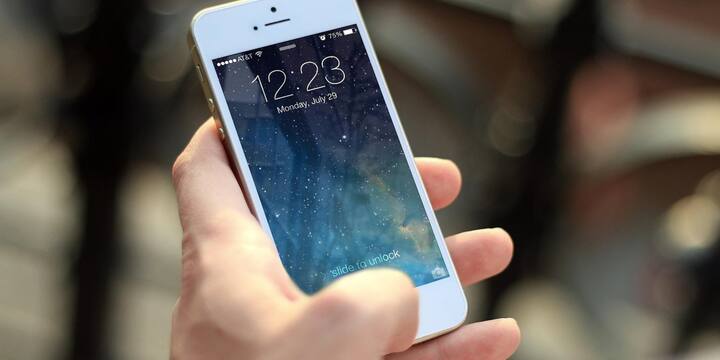
Apart from this, if you are facing any technical problem with your iPhone and you are looking for results online or contacting Apple Support, then the first thing you are asked is the iOS version.

If you want to know the iOS version of your iPhone without any extra device, then this is the easiest way. You can easily find out by following some steps. For this, first of all you have to go to the Settings app in iPhone. After this tap on General.
If you want to know the iOS version of your iPhone without any extra device, then this is the easiest way. You can easily find out by following some steps. For this, first of all you have to go to the Settings app in iPhone. After this tap on General.

Now select About option. Now your iPhone's information will appear at the top of the screen. Here, the version of the software installed in your phone will be written in front of iOS Version. If available, you can also see information about changes related to the update by tapping on this information.
Now select About option. Now your iPhone’s information will appear at the top of the screen. Here, the version of the software installed in your phone will be written in front of iOS Version. If available, you can also see information about changes related to the update by tapping on this information.

For your information, let us tell you that if your iPhone is already connected to the computer, then you can also check the iOS version with the help of Mac or Windows PC. For this you will have to use Finder in macOS Catalina or newer versions. Use iTunes in macOS Mojave or earlier. Windows users will have to install the Apple Devices app from the Microsoft Store.

For your information, let us tell you that if your iPhone is already connected to the computer, then you can also check the iOS version with the help of Mac or Windows PC. For this you will have to use Finder in macOS Catalina or newer versions. Use iTunes in macOS Mojave or earlier. Windows users will have to install the Apple Devices app from the Microsoft Store.

Published at : 21 Jul 2026 07:52 PM (IST)

technology photo gallery

Source link

Leave a Reply

Your email address will not be published. Required fields are marked *