- Be sure to check the SIM card, data roaming and cellular settings.
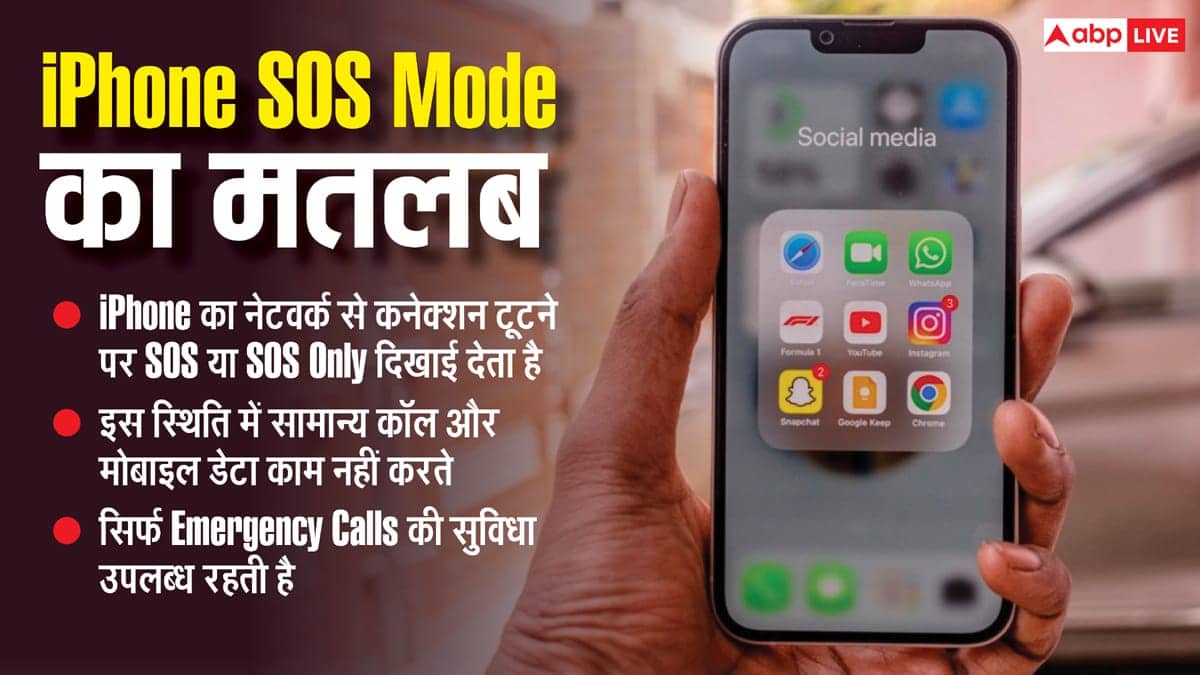
iPhone SOS Mode: Users get to see many advanced features in iPhone, which gives people a better experience of using the smartphone. In this context, let us tell you that there is an SOS feature in the iPhone which tells you that your phone is not able to connect to the network. In such a situation, it has been seen many times that people get troubled by repeatedly activating SOS mode on their iPhone but they do not know how to fix it. That is why today we will tell you why SOS mode comes on the phone again and again and how to fix it.
What is SOS Mode?
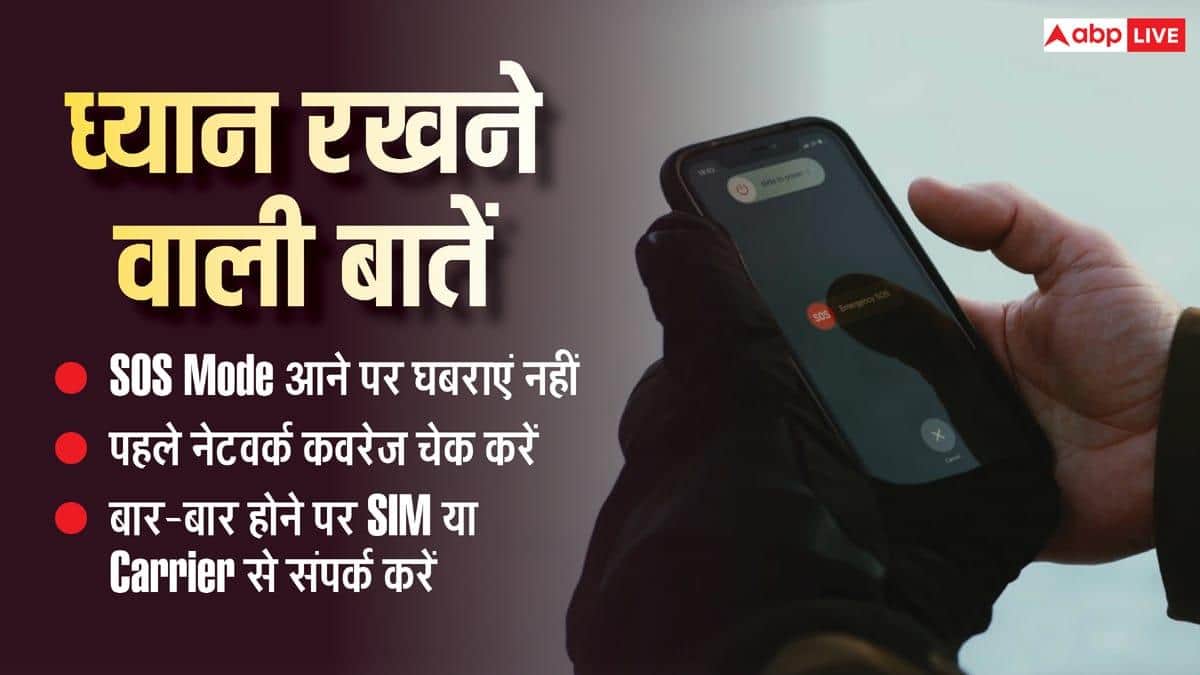
Let us tell you that SOS Mode appears in iPhone when your iPhone is not able to connect to your mobile operator’s network. However, in this mode you can make emergency calls. At the same time, if there is no service in the phone then you cannot call anywhere.
Use Airplane Mode
Let us tell you that if suddenly SOS Mode starts appearing in your iPhone, then the easiest way to fix it is to turn Airplane Mode on and off in the phone. Turn on Airplane Mode for about 15 seconds. After this turn it off. The phone will search the network again in a few seconds. By doing this often, this problem gets cured on its own.
Be sure to check iOS update
Many times users face network related problems due to old software. That is why first of all you should check the iOS update of your iPhone.
To update, first go to Settings and then click on General. Here you will see Software Update, if you click on it then the software of your phone will be updated. If a new iOS version is available, install it. This will also save you from future problems.
Restart iPhone
But if you do not get rid of this problem even with Airplane Mode, then it would be better to restore your iPhone once. When the phone is restarted, the network settings are loaded again and many problems automatically get resolved.
Check SIM Card and eSIM
If your iPhone has more than one SIM or eSIM, check that the correct line is active. For this, go to Settings and open Cellular. After this, check whether the SIM you want to use is on or not. If you are using a physical SIM, remove it and reinsert it correctly. Many times the device starts showing SOS Mode even if the SIM is not fitted properly.
Perform diagnostics with Apple Support app
For your information, let us tell you that if your iPhone is running on iOS 18 or newer version, then the phone can be easily checked through the Apple Support app. This app contains many diagnostic tools that help in detecting network and hardware related problems.
Why does SOS mode come on when traveling outside the country?
If you are traveling in another country and SOS Mode is visible there, then the biggest reason for this could be that Data Roaming has been stopped. Actually, when you go to another country, the network there catches the mobile. Now if data roaming is not turned on in your phone then the device will not be able to catch other networks. That is why data roaming should be turned on in the phone. to turn it on
Go to Settings and click on Cellular option. After this click on Cellular Data Options and Data Roaming will appear there, clicking on it will turn it on. Keep in mind that turning on data roaming may cost extra money. Therefore, before going abroad, definitely get information about the international service of your mobile plan.
At the same time, if you have used a travel eSIM, then also check that the same SIM is selected for data. If needed, Allow Cellular Data Switching feature can also be turned on, which can provide better network coverage.
Also read:
How to change the location of your home in Google Maps? This is the easy way